How to clone a voice offline on Windows
Install Mimic, download the Qwen3-TTS 0.6B engine from inside the app, record yourself reading a short passage, then type what the voice should say and press Ctrl Enter. It needs about 2.5 GB of VRAM, or about 6 GB of RAM with no GPU, and nothing is uploaded anywhere.
What you need
- Windows 10 or 11. Mimic also runs on Linux; there's no Mac version yet.
- An NVIDIA graphics card helps, but isn't required: Qwen3-TTS also runs on the CPU. See voice cloning without a GPU.
- Two free command-line tools: uv, which downloads the engines, and ffmpeg, which imports and converts audio.
- A clean recording of the voice: 3 to 30 seconds of one person talking, or you reading the passage Mimic shows you.
Step by step
- Install Mimic. Download
Mimic_<version>_x64-setup.exefrom the latest release and run it. - Install uv and ffmpeg. In a terminal:
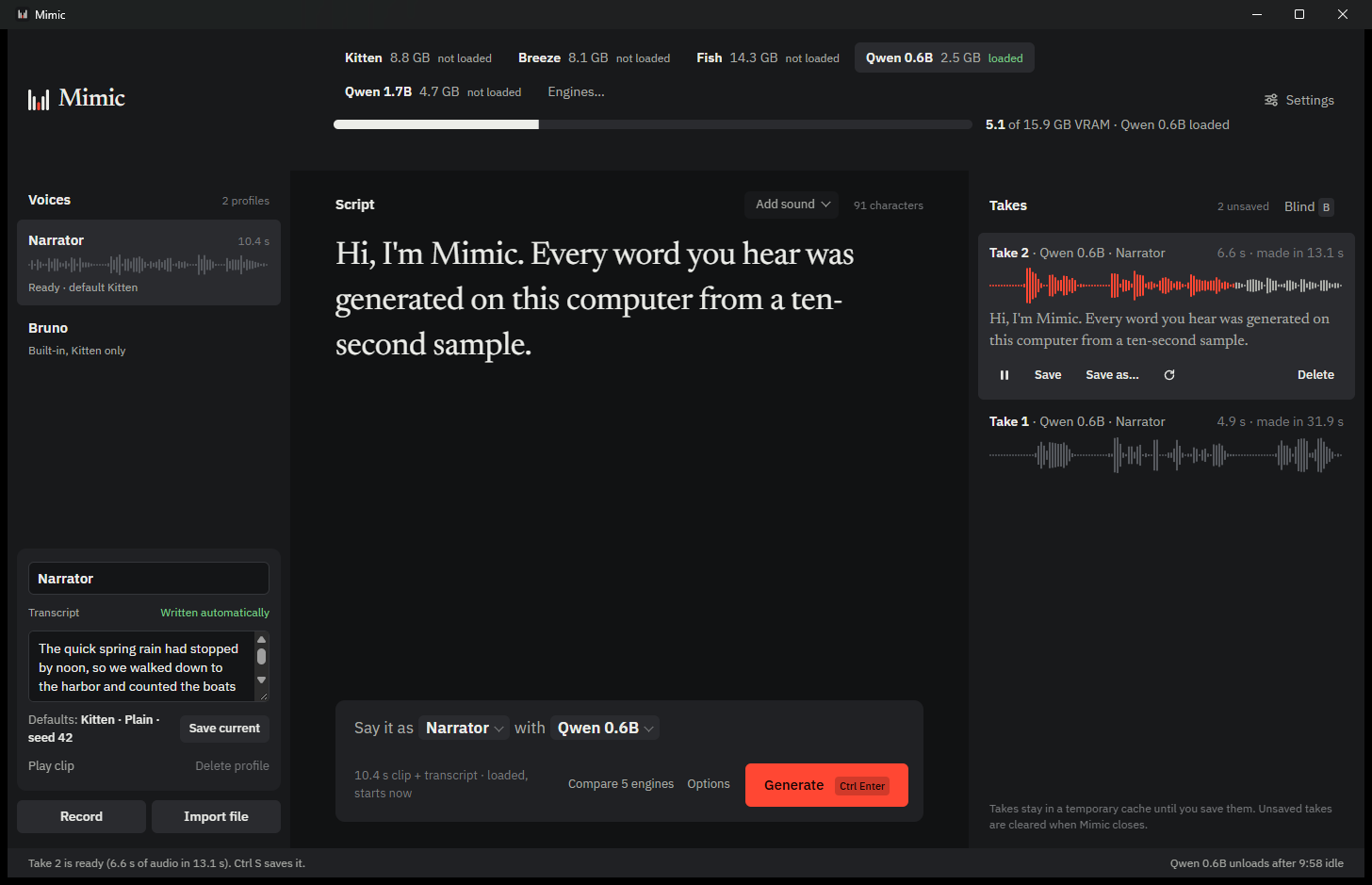
winget install astral-sh.uv winget install Gyan.FFmpeg - Download an engine. Open Settings › Engines and download Qwen3-TTS 0.6B. Download speech-to-text from the same list too, so transcripts write themselves.
- Add a voice. Press Record, type your name and read the passage aloud (8 to 20 seconds), or drop a 3 to 30 second clip onto the window. Mimic transcribes it on your PC.
- Generate. Type a script in the middle and press Ctrl Enter. Press Space to listen.
- Keep it. Press Ctrl S to save the take as WAV, FLAC or MP3. Unsaved takes are cleared when Mimic closes.
Getting a good clone
- Use one speaker, close to the microphone, with no music or background noise.
- Generate the same line a few times: each take is a little different. Compare engines makes it with every engine that fits, and B hides which is which.
- Qwen3-TTS needs the exact words of the clip. Recording the passage, or downloading speech-to-text, takes care of that.
Only clone voices you have permission to use. Your own is fine; for anyone else, ask first. Mimic asks you to confirm this before your first clone and marks saved takes as AI-generated. Using a cloned voice to impersonate, deceive or defraud someone is illegal in many places.